This guide for students introduces keyboard shortcuts in the Turnitin Clarity text editor.
For any questions about your writing or submission, please contact your instructor directly.
Keyboard shortcuts in the text editor
Keyboard shortcuts can help you write faster and format more efficiently.
- To access these shortcuts within the writing space, select the Help icon next to the Submit button.

- From the help menu, select the Keyboard shortcuts link.
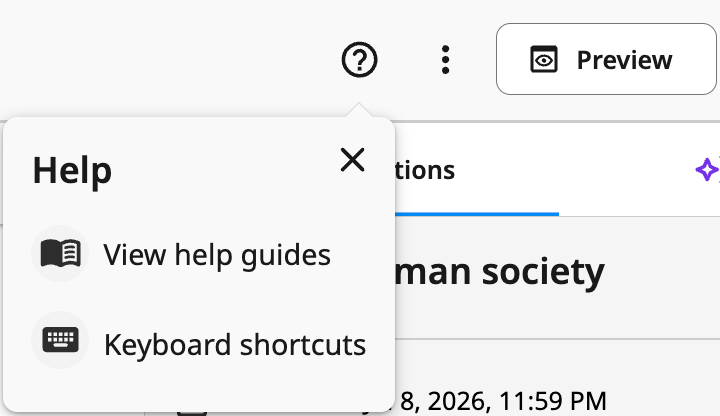
- Specific keyboard shortcuts are also tooltips on the toolbar.
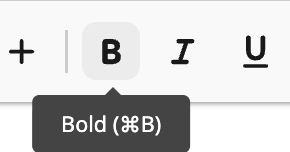
- Specific keyboard shortcuts are also tooltips on the toolbar.
The shortcuts listed are examples for a Mac device. If you're using a Windows device, use Ctrl instead of ⌘ (Command) and Alt instead of Option.
Editing
Use these shortcuts to quickly reverse or restore changes.
| Action | Keyboard shortcut |
| Undo | ⌘Z |
| Redo | ⌘+Shift+Z |
Text structure and headings
Use these shortcuts to apply semantic structure to your writing.
| Action | Keyboard shortcut |
| Body text | ⌘ + Option + 0 |
| Heading 1 | ⌘ + Option + 1 |
| Heading 2 | ⌘ + Option + 2 |
| Heading 3 | ⌘ + Option + 3 |
| Subtitle | ⌘ + Option + 4 |
Text styling
Use these shortcuts to apply style to your text for emphasis or hierarchy.
| Action | Keyboard shortcut |
| Bold | ⌘ + B |
| Italic | ⌘ + I |
| Underline | ⌘ + U |
| Strikethrough | ⌘ + Shift + X |
| Superscript | ⌘ + . |
| Subscript | ⌘ + , |
| Increase font size | ⌘ + Shift + . |
| Decrease font size | ⌘ + Shift + , |
Paragraph alignment and lists
Use these shortcuts to format your content for a clear and structured flow.
| Action | Keyboard shortcut |
| Left align | ⌘ + Shift + L |
| Center align | ⌘ + Shift + E |
| Right align | ⌘ + Shift + R |
| Numbered list | ⌘ + Shift + 7 |
| Bulleted list | ⌘ + Shift + 8 |
Navigation and focus
Use these shortcuts to switch between areas of the document or interface.
| Action | Keyboard shortcut |
| Move focus out of document text | ⌘ + Option + Shift + M |
Writing Assistance
Use these shortcuts to run or turn on/off the spelling, grammar, and citation checks (if enabled by your instructor).
| Action | Keyboard shortcut |
| Grammar check | ⌘ + Shift + G |
| Citation check | ⌘ + Shift + Y |
Page elements
Use these shortcuts to add or edit page elements such as footnotes.
| Action | Keyboard shortcut |
| Insert footnote | ⌘ + Option + F |
| Insert header | ⌘ + Option + H |
| Insert footer | ⌘ + Option + O |
Was this article helpful?
That’s Great!
Thank you for your feedback
Sorry! We couldn't be helpful
Thank you for your feedback
Feedback sent
We appreciate your effort and will try to fix the article