Because virtical videos do not fill the entire screen the sides of the screen will display green on the screen. These instructions will help you create a video that fills the entire screen.
- Browse to https://www.canva.com
- Create new landscape video project
- Add black rectangle to fill the entire screen
- Click Elements
- Search for rectangle
- Grab corners of rectangle and drag to the corner of the screen
- Fill rectangle with black
- Drag virtical clip on to timeline
- Adjust the size of the clip so the the top and bottom align with the top and bottom of the screen
- Make sure that the clip is centered
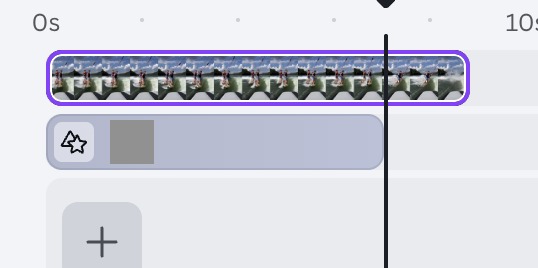
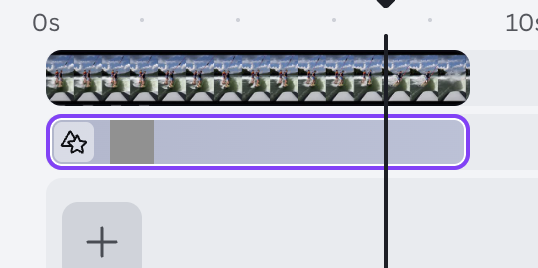
- Adjust the length of the rectangle to match the lenth of the vertical clip
- Export video as 1080p
- Add to Proclaim like a normal video
Was this article helpful?
That’s Great!
Thank you for your feedback
Sorry! We couldn't be helpful
Thank you for your feedback
Feedback sent
We appreciate your effort and will try to fix the article