Overview of Notifications
From your account page, fine-tune your notification settings for Posts, Direct Messages, and Alerts & Notices for each school and district. Post notifications can also be customized by frequency (instant or digest). Note: Alerts & Notices includes urgent alerts, attendance notices, and auto notices marked as critical notices.
Update your Notification Settings (using web browser)
- From Home, click your name and select Manage Account.
- Click Notification Settings.
- Choose your preferred notification settings:
- Urgent Alerts & Notices:
- On: Notifications for Attendance notices, Urgent Alerts, and Auto Notices marked as critical are enabled automatically and cannot be disabled.
- Posts:
- Instant: Notifications are delivered as soon as possible after a post is sent. Note: if both app and text notifications are set to instant, the post will be sent via Smart Notification Delivery.
- Digest: Notifications are delivered in the evening in the time zone of the institute.
- Off: If the user selects Off, no notifications will be delivered to this email/phone/app for the school or district. Note: The Off setting is overridden for urgent alerts.
- Direct Messages:
- Email: Notifications are delivered instantly via email.
- Text: Notifications are delivered instantly via text.
- App: Notifications are delivered instantly via push.
- Alerts & Notices:
- On: You will receive all Smart Alerts and Auto Notices from this school or district.
- Off: You will only receive Urgent Alerts and Critical Auto Notices.
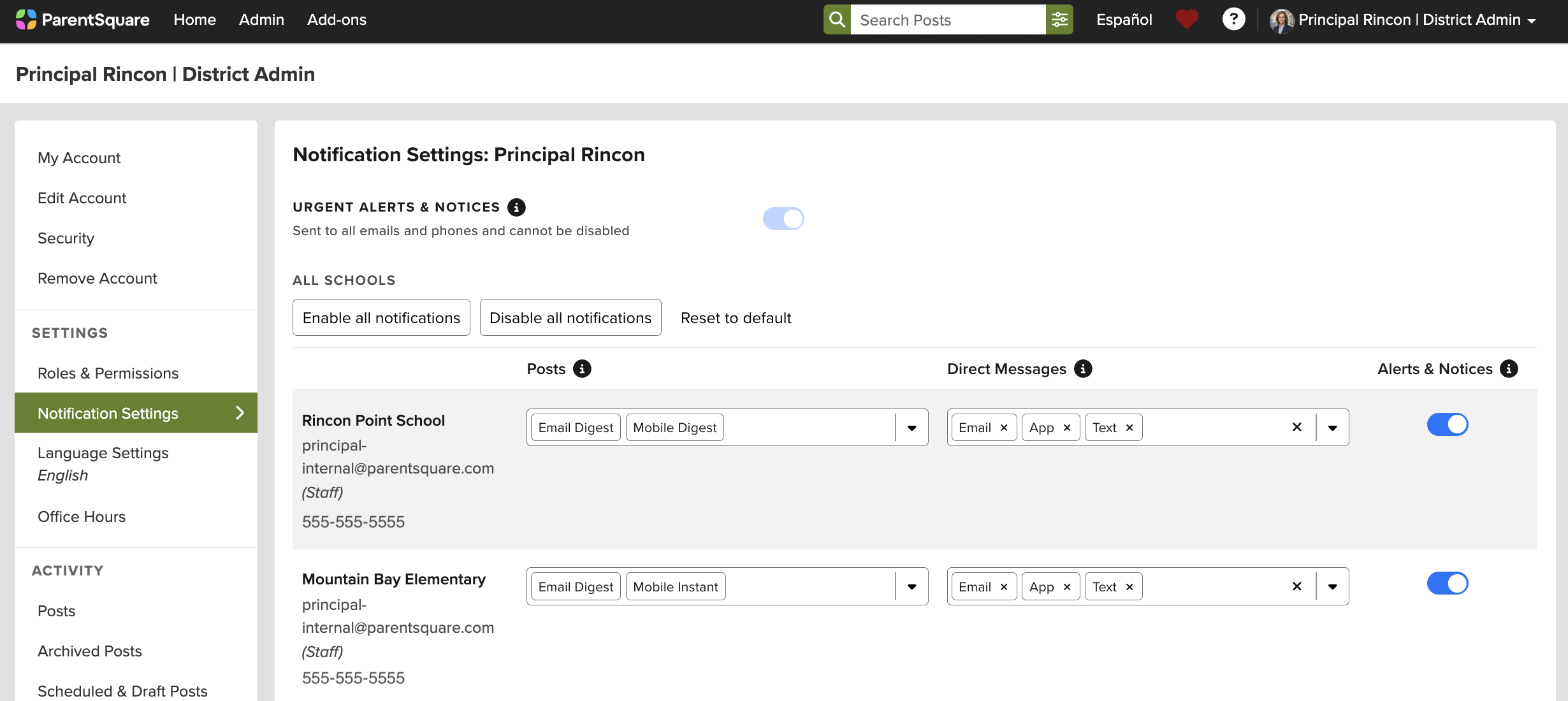
- Urgent Alerts & Notices:
- If you have multiple emails or phones listed on your account, set the order of your preferred contacts to receive notifications. Notifications will only be sent to one email and one phone on your account.
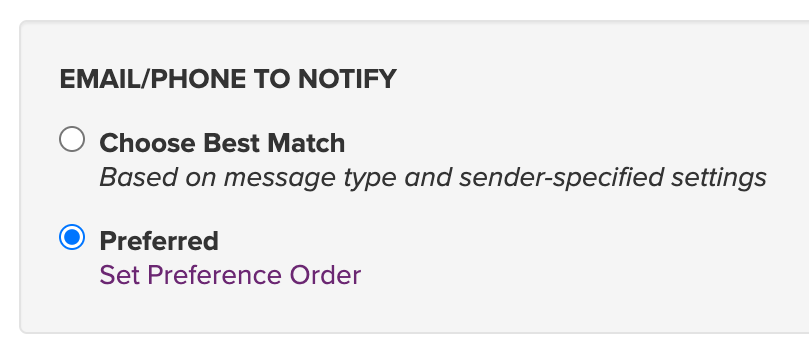
Note: the “Choose Best Match” setting will select the most relevant email and phone to send the notification to. Notifications related to the student/parent will go to the personal email/phone, while notifications intended for staff only will always go to the staff email/phone. Posts sent to both staff and parents will default to the parent email/phone. If "Digest" is selected and there is at least one notification in the Digest that includes parents, the digest will be sent to the parent email.
Update your Notification Setting (using mobile app)
- From Home, tap the triple bar menu (≡) in the top left.
- Tap Account.
- Tap Notifications.
- Use the toggle to turn School Alerts on or off.
- On: Get all alerts and notices.
- Off: Only get urgent alerts and critical notices.
- Under Direct Messages, use the toggle to turn on each way you want to be notified:
- App: Get a push notification right away.
- Text: Get a text right away.
- Email: Get an email right away.
- Under Posts, use the toggle to turn on each way you want to be notified. You can turn on Mobile, Email, or both. After you turn one on, tap Instant or Digest:
- Instant: Get a notification as soon as a post is sent.
- Digest (recommended): Get one notification a day with all of that day’s posts.
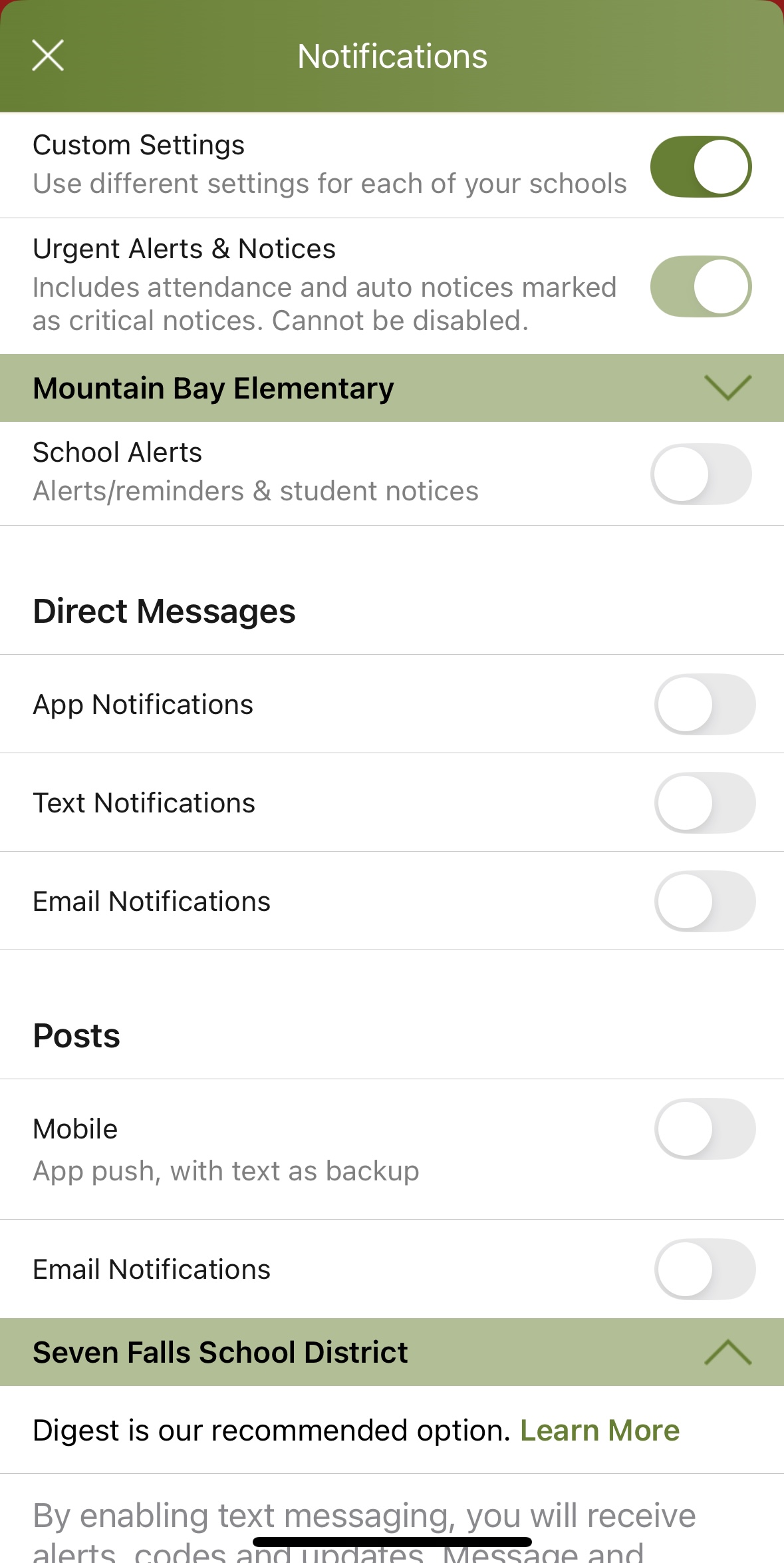
On the app, if you have both app and text notifications on, Post notifications will first be delivered to the app with a text backup when needed. Direct Messages and Alerts will still be sent to text.
Note: In order to receive app notifications on your phone, be sure they are enabled in your phone settings.
Was this article helpful?
That’s Great!
Thank you for your feedback
Sorry! We couldn't be helpful
Thank you for your feedback
Feedback sent
We appreciate your effort and will try to fix the article